



Summary created by Smart Answers AI
In summary:
- PCWorld outlines seven essential Windows security settings to protect your laptop data from theft and unauthorized access, focusing on encryption, tracking, and backup strategies.
- Key recommendations include enabling device encryption or BitLocker, using Windows Hello biometric sign-in, activating Find My Device, and implementing regular local and cloud backups.
- Additional protection involves using Bluetooth trackers like AirTag or Tile, locking laptops with Windows key + L, and considering physical security measures like Kensington locks in public spaces.
One day, you might lose your laptop. It could be stolen or it could be misplaced. But if you’re reading this right now and you still have your laptop with you, the advice is the same either way: be proactive and take steps to protect your machine ahead of time.
There’s nothing worse than realizing your laptop is gone and being full of regret, wishing you’d taken those proactive steps when you had the chance. You have that chance right now—don’t put it off until “later” that never comes. Act now to protect your sensitive data and make sure your laptop is more easily recoverable should you lose it.
Both Windows 11 and Windows 10 have useful safeguarding features worth using, and Windows can theoretically track your lost laptop (but you’ll need extra hardware for the best tracking experience). Here are the preemptive steps you should take to protect your laptop ASAP.
Check if your storage is encrypted
First things first, you have to make sure your laptop’s internal storage is securely encrypted. There’s a good chance it already is—disk encryption is enabled by default on many newer Windows laptops—but it might not be. If it isn’t, you’ll want to turn it on.
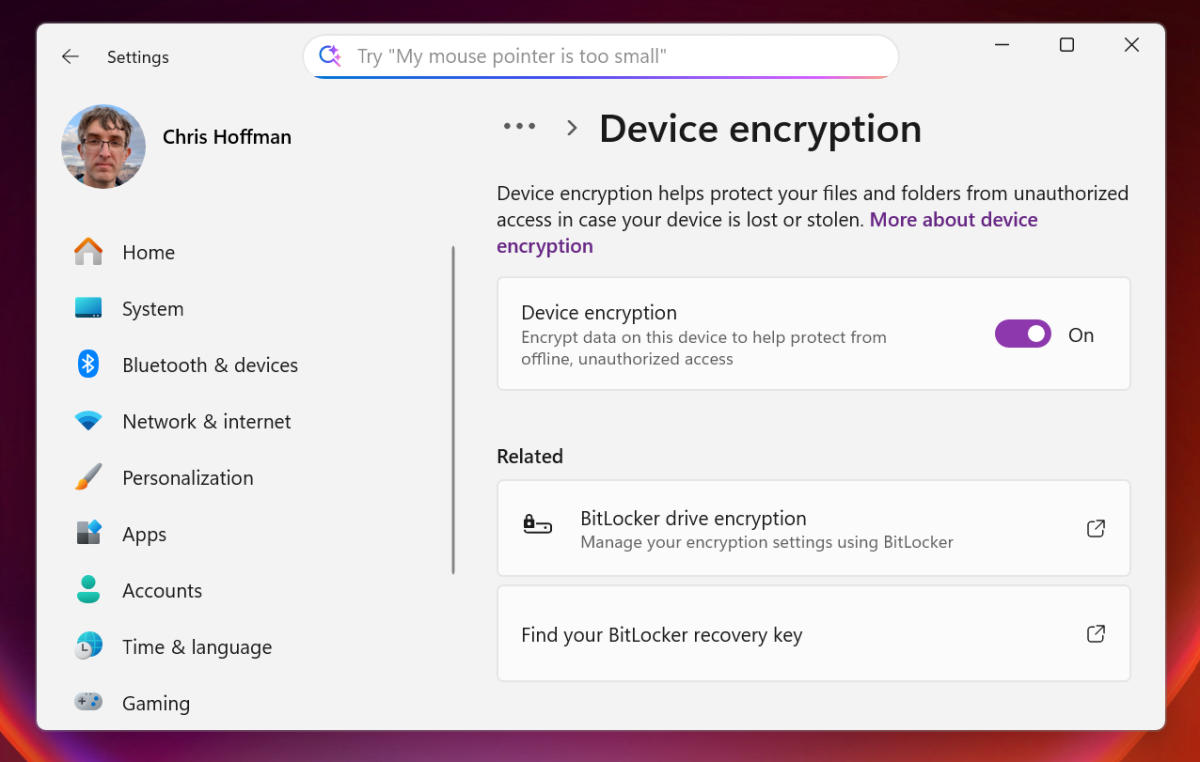
To check if your PC is encrypted, open the Start menu, search for “Device Encryption” or “BitLocker,” then click Device encryption settings or Manage BitLocker, respectively. You’ll see a different option depending on how your PC is encrypted. (Windows is confusing like that. Learn more about BitLocker versus device encryption.)
Chris Hoffman / Foundry
If Windows says Device Encryption or BitLocker is activated, rest assured your files are safely encrypted and protected from thieves. If your laptop is lost or stolen, no one will be able to access your data—as long as your laptop is locked, sleeping, or shut down when it’s lost.
Enable disk encryption if it isn’t on
If your laptop’s internal storage isn’t encrypted, that’s a problem. It means anyone who gains physical access to your laptop can snoop or steal your files and private data. You do have private data, don’t you?
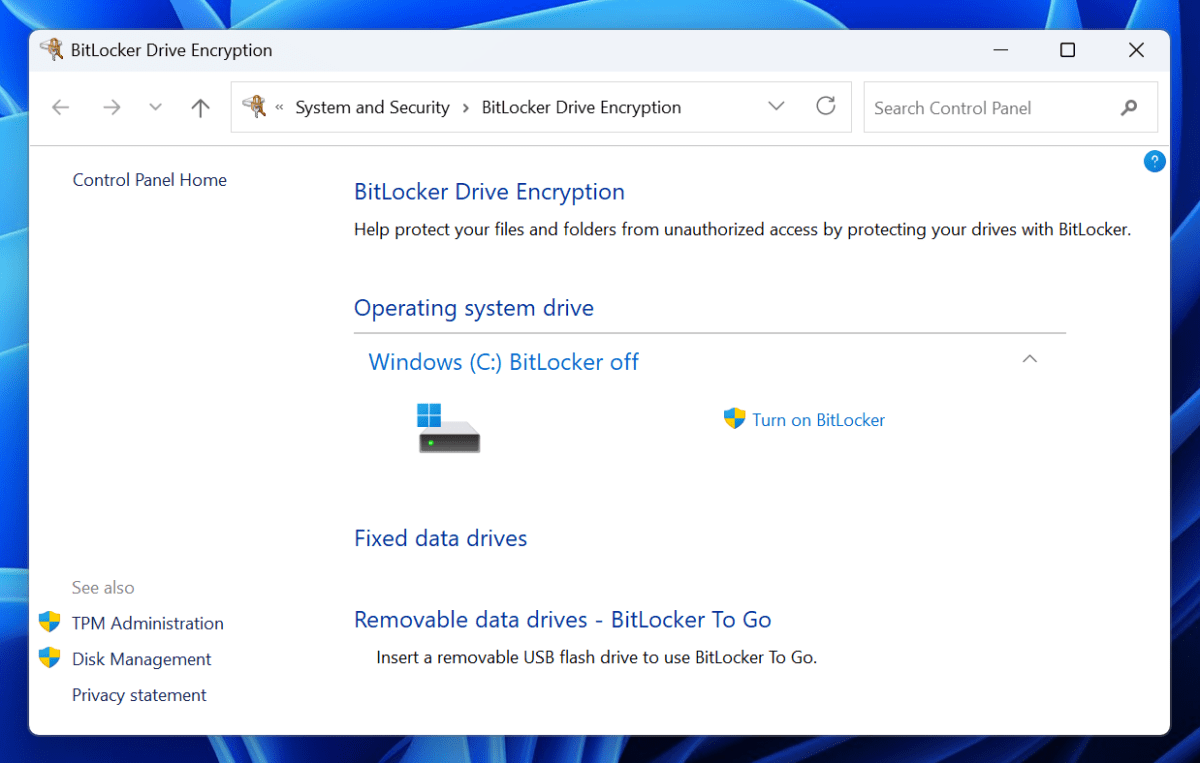
Modern Windows PCs generally support device encryption, which is activated by default when you sign in with a Microsoft account. If your PC supports Device Encryption but you’re using Windows with a local user account, just sign in with a Microsoft account to activate it. Windows will save your BitLocker recovery key to your Microsoft account online, so you can access your data even if you forget your Microsoft account password.
Chris Hoffman / Foundry
If you want proper disk encryption but don’t want to sign in with a Microsoft account, you’ll have to pay to upgrade to the Professional edition of Windows 11 (or Windows 10). This will unlock the full BitLocker experience and you’ll be able to encrypt your PC’s internal storage without signing in with a Microsoft account.
Back up your files (or at least sync them)
With disk encryption set up, a thief won’t be able to gain access to your files… but any files that are only on your laptop will still be lost to you. If you don’t have backups of your files, the only way to recover them is to physically recover your laptop. That’s why it’s critical to maintain backups of your important data at all times, whether via local backups, online cloud backups, or ideally both.
It’s also a good idea to store your important files on a cloud storage platform, whether that’s Microsoft OneDrive, Google Drive, Apple iCloud, or whatever other file-syncing service you prefer. Cloud storage keeps your files in sync across multiple devices, lessening the risk of outdated backups. Plus, you’ll have convenient online access to all of your files even if you’re unable to recover your laptop.
Enable Find My Device (for what it’s worth)
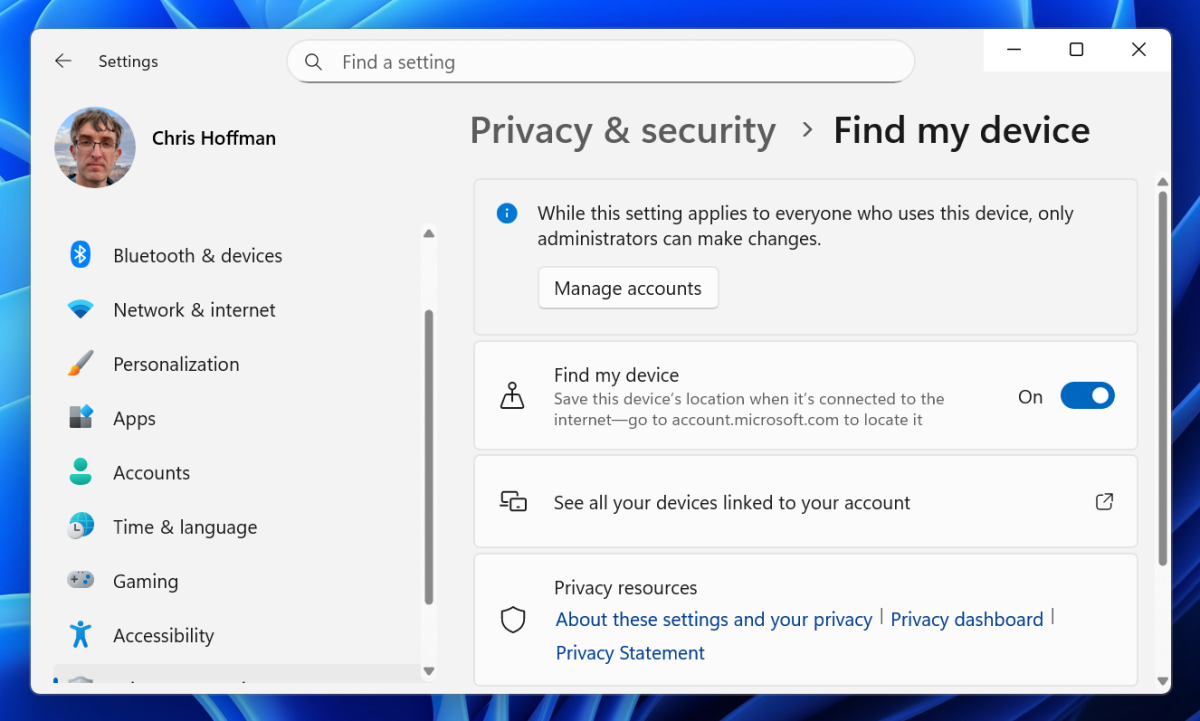
Windows has a built-in Find My Device feature and it’s one of the lesser-known Windows features everyone should know about. To turn it on, head to Settings > Privacy & security > Find my device. After it’s enabled, you can head to Microsoft’s Find My Device page in a browser, sign in with your Microsoft account, and remotely locate your laptop.
Chris Hoffman / Foundry
This sounds great in theory, but there are some drawbacks to it. For starters, Find My Device will only work if your laptop is powered on and has an internet connection. That might be okay if you accidentally left it behind in a café, but not so effective if it was stolen. (This type of remote tracking works better with phones since they’re always partially awake and usually have an active cellular data connection wherever they are.)
Still, Find My Device is still worth enabling since you never know. Plus, if you have a laptop with built-in 5G internet, it will be even more recoverable because it could still be tracked even without a Wi-Fi connection. But 5G laptops are uncommon and expensive. Fortunately, there’s an even better way to track your laptop. Keep reading.
Add a Bluetooth tracker to your laptop
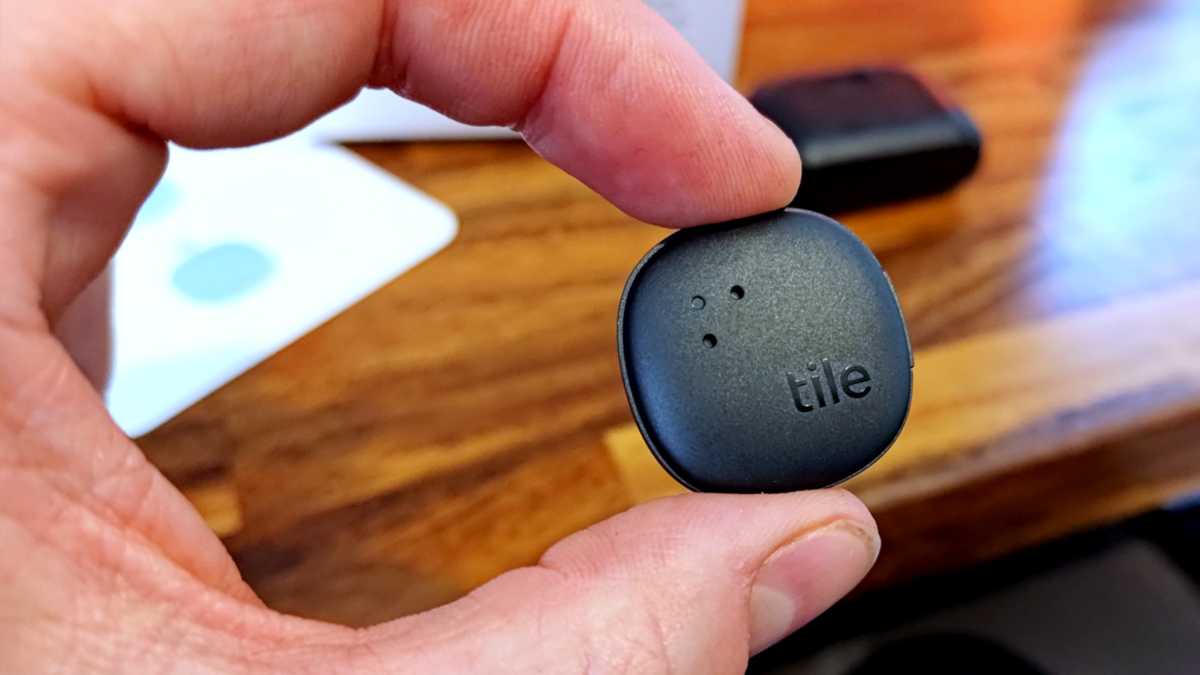
Realistically speaking, the best way to remotely track your laptop is with a small Bluetooth tracker, whether that’s an Apple AirTag, Tile, Chipolo, Samsung Galaxy SmartTag, or whatever else. Throw it into your laptop bag and you’ll be able to track it if your bag is snatched or lost.
Jon Martindale / Foundry
Alternatively, if you don’t mind sticking something directly onto your laptop, get an adhesive Bluetooth tracker. The pro here is that you can still track your laptop if it’s separated from your bag. The con here is that a bad actor could easily tear it off upon stealing your laptop.
I would love it if laptops came with built-in Bluetooth trackers that were compatible with all these networks, but alas. Until laptop makers realize this is a clever idea, your best bet is to use a third-party tracker.
Secure your PC with biometric sign-ins
Windows has a feature called Windows Hello that forces you to sign in using a personal fingerprint or facial recognition scan. This is a great way to secure your laptop in case of theft, and it’s one of the reasons why I’ll never buy a laptop that lacks biometric hardware.
Biometric sign-ins eliminate the threat of shoulder surfing. Since you aren’t typing your PIN or password in a public area, no one can snoop on your PIN or password—thus, they won’t be able to sign in as you after nicking your laptop. And with forced biometric sign-ins, they wouldn’t be able to get in with your PIN or password even if they had it.
Chris Hoffman / Foundry
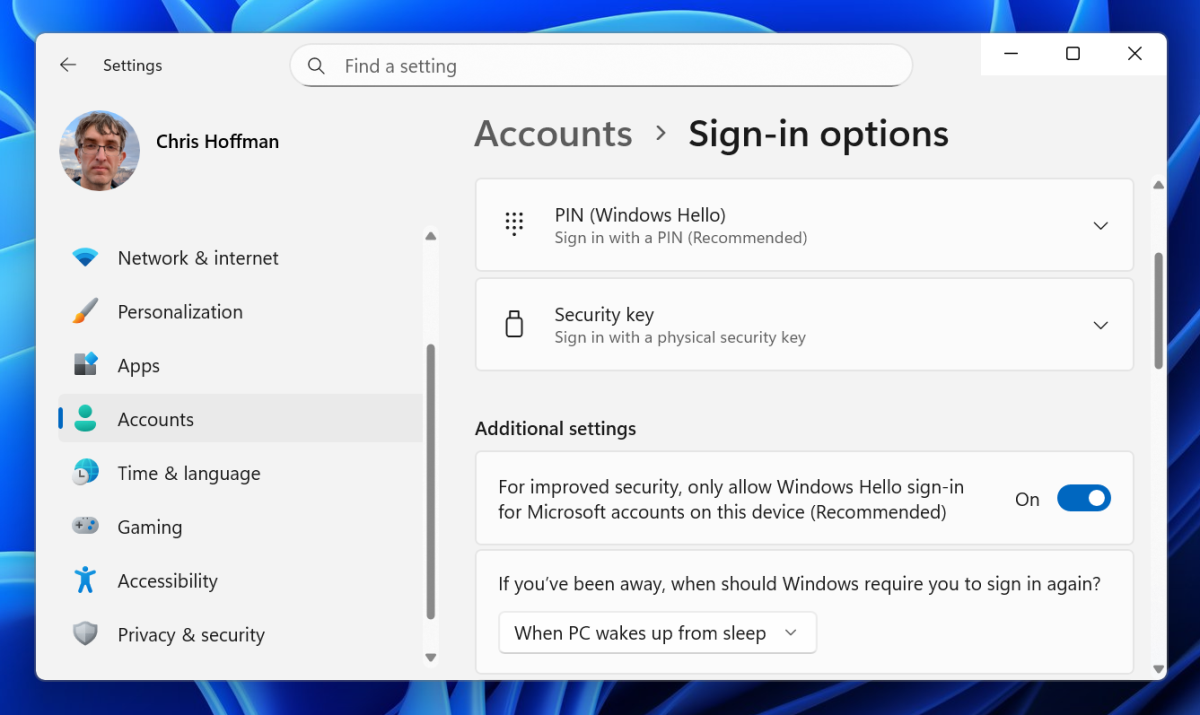
To enable this, head to Settings > Accounts > Sign-in options and turn on “For improved security, only allow Windows Hello sign-in for Microsoft accounts on this device (Recommended).” Then, avoid typing your PIN in public. Always use biometrics.
Lock your laptop up tight
Biometric sign-ins can only protect your laptop when it’s signed out, forcing thieves and snoopers to log back in. For that reason, you should set up your laptop to sleep and lock itself when not in use.
Whenever you step away from your laptop, use the Windows key + L keyboard shortcut to lock it. Or simply close the lid. Make this a force of habit so your laptop is never caught out unlocked, which means you should be doing this at home and in offices too. No one should be able to have free access to your laptop when you’re away from it. (I personally use the Windows lock keyboard shortcut every day!)
IDG
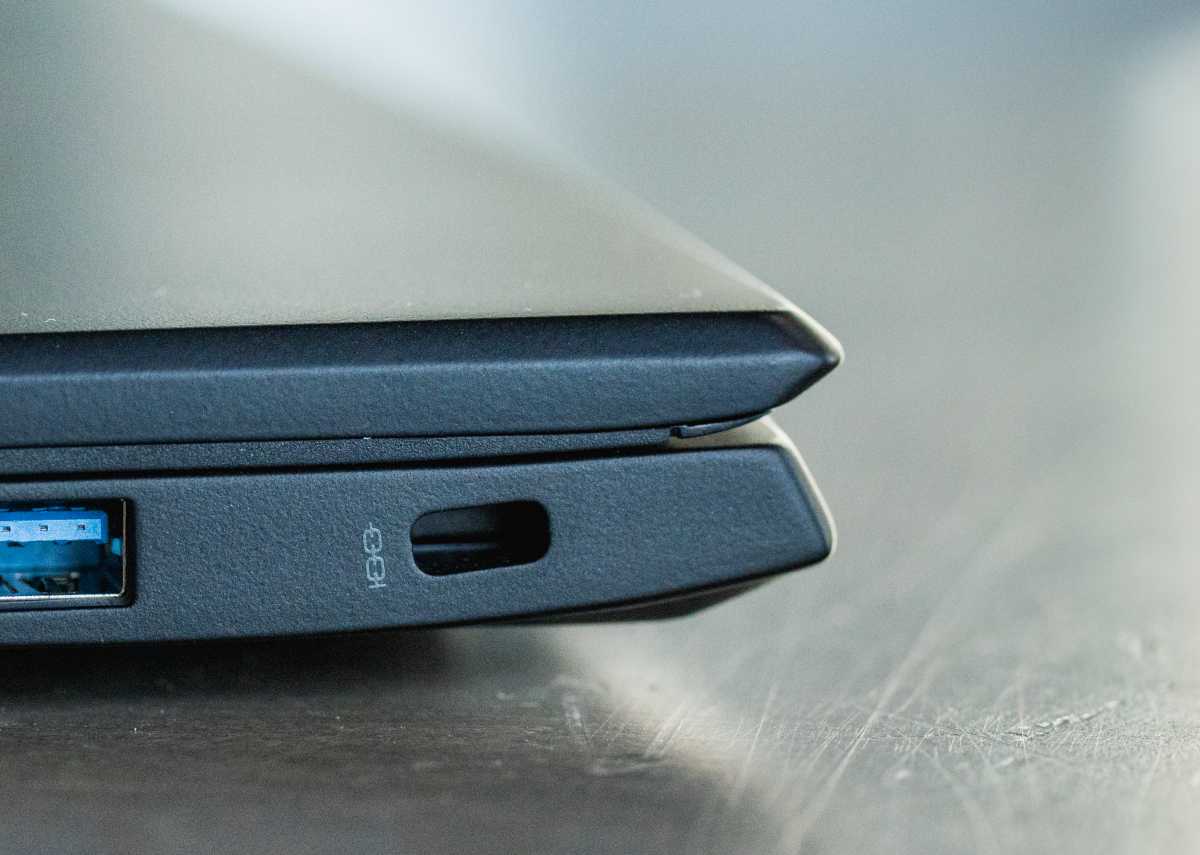
Also consider physically locking your laptop. If you’re in a dorm lounge, a library, a café, or some other non-private place, you can use a Kensington lock to secure your laptop in place—assuming your laptop has a Kensington lock slot. But even if your laptop does have one, you probably don’t have a proper Kensington lock. What then?
Well, it’s always safer to slip your laptop into a bag and take it with you—even if you’re just hitting the bathroom—than it is to leave it unguarded where someone could snatch it. If you ever have to leave your laptop out of eyesight, stash it away in a bag with a Bluetooth tracker.
